If you have a database column that contains a URL and you want to make it appear in your GridView as a clickable hyperlink, change the GridView column to a Template Field, delete the textbox in there and add a Hyperlink control instead. Change the source to look like this:


<itemtemplate>

<asp:HyperLink id="HyperLink1"

runat="server" Text='<%# Bind("url") %>' NavigateUrl='<%# Bind("url") %>'></asp:HyperLink>

</itemtemplate>

Original site : http://geekswithblogs.net/ranganh/archive/2008/04/01/file-upload-in-updatepanel-asp.net-ajax.aspx

File Upload in UpdatePanel doen't work, ASP.NET AJAX

One of the common queries I get across my sessions is that, the File Upload control doesnt work inside an Update panel. All of us would like to implement a Gmail File Upload kind of interface and when you try to implement a similar thing using UpdatePanel (which works like a charm for other activities), it simply doesn't work.

The behaviour is expected. The File Upload Control doesnt work inside an Update Panel due to security reasons and restrictions a browser implies. They dont allow Javascript files to directly access the files in an user's sytem and dont allow to modify or access the details of a file when working with the File Upload Control.

There are a couple of ways to solve this issue, one using Update Panel and Post Back Triggers and the other using Iframes.

1. Use Update Panel, File Upload Control and use a PostBackTrigger Control to force a postback only for the File Upload Control

This approach works well without much tweaking except for that, there would be a postback only for the File Upload Control. While the rest of the stuff happens asynchronously, using the UpdatePanel, when the user presses the "Upload" Button, the page will be refreshed. Let us examine how we can accomplish this. Place the following code within the <form> </form> tags in your ASP.NET Page.


:ScriptManager ID="ScriptManager1" runat="server"></asp:ScriptManager>

:UpdatePanel ID="UpdatePanel1" runat="server">

:TextBox ID="TextBox1" runat="server">asp:TextBox>


:Button ID="Button1" runat="server" Height="20px" onclick="Button1_Click" Text="Submit" Width="128px" />

:Label ID="Label1" runat="server" Text="Label">asp:Label>

:FileUpload ID="FileUpload1" runat="server" />

:Button ID="Button2" runat="server" Height="25px" onclick="Button2_Click" Text="Upload" Width="128px" />

:Label ID="Label2" runat="server" Text="Label"></asp:Label>

:PostBackTrigger ControlID="Button2" />

Triggers>

asp:UpdatePanel>


In the Code behind, add the following lines of code:-

protected void Button1_Click(object sender, EventArgs e)

{

Label1.Text = TextBox1.Text;

}

protected void Button2_Click(object sender, EventArgs e)

{

FileUpload1.PostedFile.SaveAs(@"C:\test\"+System.IO.Path.GetFileName(FileUpload1.PostedFile.FileName));

Label2.Text = FileUpload1.PostedFile.FileName;

}

If you run the above sample, you would notice that upon entering something in the TextBox and clicking "Submit" (Button1) the Label above the File Upload Content, shows the Text you typed, without a page refresh.

However, when you select a file and click on the "Upload" (Button2) Button, you would notice that a postback happens and the file gets posted to the "C:\Test\" folder and also the full path is specified in the Label 2.


In the above code, I have not taken any steps regarding validation, checking if file exists etc., since it just shows how you could accomplish File Upload within Update panel. In normal cases, you would write better code to accomplish a file upload feature.


2. Use Iframes and accomplish a truly Gmail Like File Upload Interface.


I thought of writing a post on this, but did a quick research and found that there are a few solutions posted by our MVPs / Community Folks and just thought of providing a link to the same.

http://vinayakshrestha.wordpress.com/2007/03/13/uploading-files-using-aspnet-ajax-extensions/

http://msmvps.com/blogs/luisabreu/archive/2006/12/14/uploading-files-without-a-full-postback.aspx

Note that this post doesnt claim any warranty / support for the above articles, though.

Cheers !!!


Introduction

Several times we encounter a great and sophisticated web or desktop application that does not poses it's appropriate market share just for the reason of poorly written SETUP package and poorly designed deployment strategy. The fact is simple: If your users are not able to easily deploy your application then whatever sophistication or features you  provide, they will be unable to even experience your application from the very first place! 

In this tutorial we are going to show you a set of techniques by which you can package and deploy your web applications .....

Alternatives

When it comes to web applications specifically, then you will encounter many techniques that can be utilized as a deployment strategy for your web application: 

XCOPY Deployment

The most trivial technique is to simply copy your web application files to the production server hard drive and set a virtual directory there. The setting of a virtual directory is needed by several deployment schemes and can be achieved from Internet Information Manager Microsoft Management Consol (MMC snap-in). Because developers typically use the command line order 'XCOPY' to implement this technique, this technique is typically referred to as XCOPY Deployment.

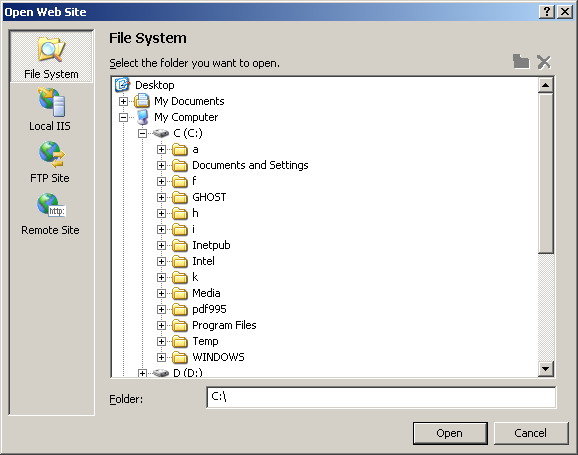
Copy Web Site

Copy Web Site is a new technique provided in ASP.NET 2.0 and Microsoft Visual Studio 2005 (Available from the Website / Copy Web Site... Menu option). Although this technique is performed from inside Visual Studio (in contrast with the XCOPY deployment technique which is performed from outside Visual Studio), there is no compilation performed at all. All your pages are still in their source code form on the production server. Some developers see this fact as a high risk on their intellectual property. Two extra disadvantages of this technique (and in fact any other technique that does not involve any compilation before deployment) are reduced error checking and the slow initial page load.

The reduced error checking is a direct result to that no compilation is performed and hence some errors may be discovered by your users later. The initial page load slowness is also because nothing is compiled yet and the entire web application has to be compiled at the time the first page is being requested. An advantage of this technique over the XCOPY deployment is that you have the options to deploy to the File System, the Local IIS, the FTP Sites, and the Remote Sites. Please see figure 1.


Figure 1

Pre-compilation

All of the deployment methods we mentioned so far suffer from the fact of that no compilation is performed along with the disadvantages that comes as a direct result from this fact. To ensure fast page load and some protection of your source code, you should pre-compile your web site before deployment.

Pre-compilation can be performed in-place by just adding '/Deployment/Precompile.axd' to the root URL of your web application and opening the resulting URL in Internet Explore.

Pre-compilation can also be achieved using the command line compiler 'aspnet_compiler'.

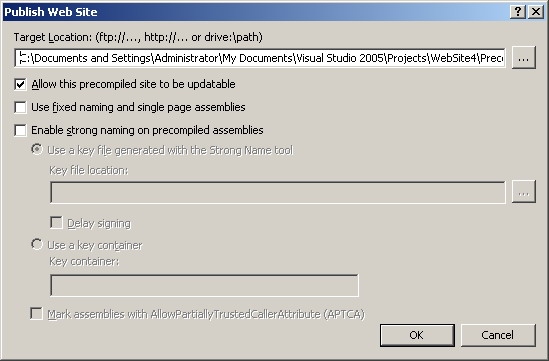
Using Microsoft Visual Studio 2005 you can still perform pre-compilation from the 'Build / Publish Web Site' menu command. Please see figure 2.


Figure 2

SETUP Projects


It's always desirable to package your web applications such that they are easy to deploy on the production server. Microsoft Visual Studio 2005 gives you this rich packaging option for free ... Just follow the following instructions ...

First of all you need to know that our target is to create a package (and MSI file) that contain our web application in a form that can be later easily deployed on the final production server.

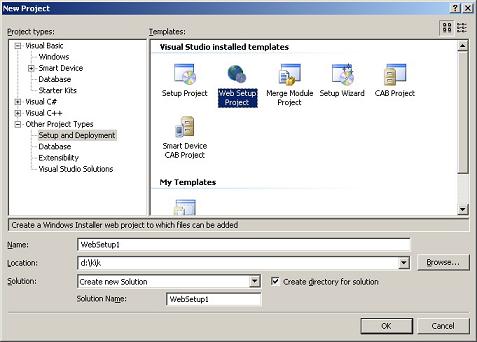
Let's start by selecting 'File / New / Project' in Microsoft Visual Studio 2005. This will present you the famous set of possible project types from which you will select 'Other Project Types / Setup and Deployment' then you will select the 'Web Setup  Project' icon from the side to the right. See figure 3.


Figure 3

In figure 3, set the appropriate project name and folder options then click OK.

You can always have the same behavior by adding the SETUP project above to your web application solution instead of creating a new separate solution. You can achieve this by selecting  'File / Add / New Project' instead of 'File / New / Project'. This way you will have a self contained web solution. The 'File / Add / New Project' method is much more recommended.

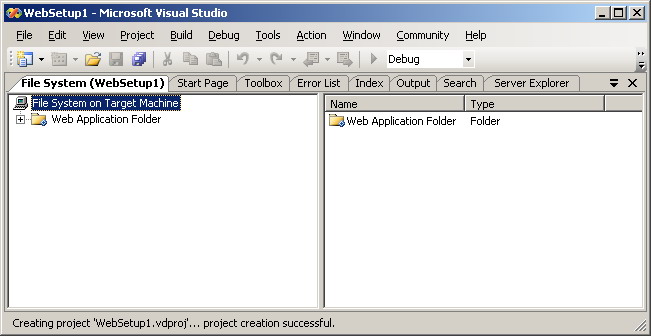
Your setup project will then open as in figure 4 below:


Figure 4

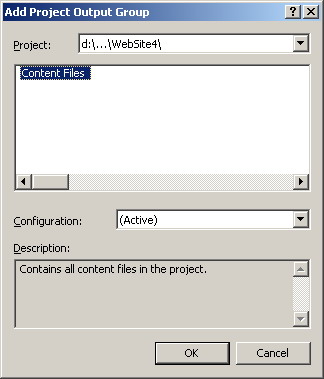
You will then need to add your web application files to the SETUP project we are developing now. This can be achieved by right clicking your SETUP project name in solution explorer and selecting 'Add / Project Output'. Please see figure 5.


Figure 5

To tune the properties of our SETUP project, we will need to press F4 while it's name is selected in the solution explore. This will bring the SETUP project's properties window. Several useful properties can be set in this window:

Property
Purpose
Author, Description, Manufacturer, ManufacturerUrl, ProductName, Subject, Title, and Version Use all of these properties to identify / describe your application and yourself.
AddRemoveProgramsIcon Here you can specify the icon to be displayed beside your application in Windows Control Panel's Add Remove Programs.
DetectNewerInstalledVersion Specify here whether or not a check is to be performed to determine the existence of a new version already installed of your web application.
RemovePreviousVersions Specify here whether you need an older version of your web application to be removed if a newer version is being installed.
RestartWWWService Some web applications requires the Internet Information Service to be stopped and then restarted after the deployment of the application. Use this property to control such behavior.

The last and most important step is to actually build our SETUP project. This cane be achieved by right clicking the name of our SETUP project in the solution explorer. It's this specific step that creates the MSI package / file mentioned above. This is the file you will need to distribute to your users and this is the file they will use to deploy the web application on their production server.

It's worth mentioning that the actual deployment process will be some what similar to the SETUP of any typical desktop application (with some exceptions of course). One of the many similarities is that the web application after deployment will automatically appear in the 'Add / Remove Programs' window of Windows Control Panel.

Production Server Deployment

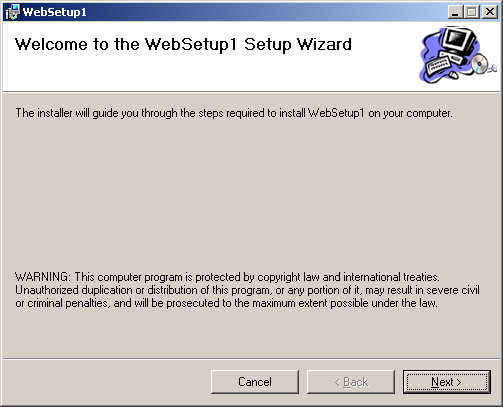
For your users to deploy your web application they will just need to double click the MSI file. This will produce something similar to figure 6:


Figure 6

Protection and obfuscation of .NET executable files (.exe, .dll,...)

You must know that every of your .NET products, web application or ASP.NET custom control, can be easily decompiled. Practically every user can get your source code by using some free .Net decompiler. If your license doesn't include source code it is not enough to just exclude source code files from installation. You need additional protection.

After long analyze, we decided to use Spices.Net for protection of all products of Bean Software. Even if you can't afford complete suite, consider at least their Obfuscator. Later, I discovered .NET Reactor which also looks good and it is about ten times cheaper :). You can check Product Comparison link on NetReactor site where it is compared to some other products, it looks really impressive, and not only in price issue.

For further information

Refer to the online copy of Microsoft Developers Network at http://msdn.microsoft.com or use your own local copy of MSDN..


article from : http://codebetter.com/blogs/david.hayden/archive/2005/08/05/130372.aspx

I have been writing a series of blog posts, which I have coined High Performance ASP.NET Websites Made Easy! There is no rhyme or reason to the order of these posts and certainly can be read in any order:
The premise behind the ideas presented in these posts are that they must be 1) Dang Near Effortless, 2) Require Very Little Expertise, 3) Leverage Built-In .NET Features or Tools, 4) Easy to Maintain, and 5) Offer Decent Bang For Your Buck

Speeding Up ASP.NET Pages
Speeding up ASP.NET Pages can be done in several ways. Below are 3 categories that come to mind and are not complete by any means:
Reduce Page Processing: Eliminating PostBacks, Caching Output, Avoiding Chatty Interfaces, Avoiding Web Controls
Reduce Page Sizes: Limit sizes of ViewState, HTML, JavaScript, and Images
Improve (Faster) Page Rendering: CSS instead of Tables
Reduce Page Processing
We talked about reducing page processing by short-circuiting the HTTP Pipeline by using ASP.NET Caching.
By caching entire pages or usercontrols, you can eliminate quite a bit of processing done on the page and its controls. In fact, if you do entire page caching, HTTP Headers are sent in the HTTP Response that tells the proxy server and browser it is okay to cache the page, which may keep your web server from being hit by future requests of the same page.
An additional tip to reduce page processing is to avoid web controls all together. Don't use ASP.NET web controls for static information. Stick to the generic HTML controls that we all knew and love before ASP.NET was ever invented.
An old solution packaged with a new name, AJAX, eliminates entire page postbacks, which also reduces page processing. I recommend being careful with this as too much AJAX can be a maintenance headache and is certainly not effortless.
Reducing Page Sizes
A very simple and effective way of increasing the performance of your ASP.NET application is to reduce the page size.
ASP.NET aside for a moment, the less HTML being streamed back to the browser the faster the page. You want to reduce the amount of HTML, the size of images, the size of javascript files, etc.
A note about image sizes. At the Tampa Code Camp, someone thought that changing the width and height attributes of an image caused ASP.NET to reduce the size of the image being streamed to the browser. This isn't the case. The height and width settings on an image are for display purposes only. If you have a 640 x 480 image, the entire image will be streamed to the browser even if you are only displaying 100 x 100. Better to open up your favorite image editor and reduce the image to 100 x 100 for faster performance if it makes sense.
Although I wouldn't recommend it unless absolutely necessary, you can download free tools that will compress / eliminate the white space in HTML and javascript files. This could be a maintenance nightmare. You may want to checkout IIS plugins that will do it for you without physically changing your source files.
Specific to ASP.NET, you want to be careful about the size of your ViewState. Turn-off ViewState on controls if you can, especially on DataGrids, Repeaters, DataLists, and GridViews that tend to be huge if not kept in check. The most effortless idea here is that ASP.NET pages that don't postback to themselves don't require a ViewState. Turn off ViewState altogether on those pages.
Improve (Faster) Page Rendering
Using CSS instead of tables will cause the browser to render your pages faster. Boy I love tables, but I have been slowly trying to get better and better at using CSS to layout my pages.
I am not an expert on this subject, so I point you to an interesting tutorial on CSS and the benefits of using it over tables:
http://www.hotdesign.com/seybold/index.html

Resources

Many of you have seen this mysterious if/then statement in a lot of the online and book code samples, and you probably have, at one time or another, wondered just what exactly this was all about. This tutorial plans to answer all your questions. There is one basic question that gets asked on ASP.Net Forums and ASPFriends.com ListServes, over and over, in a several different ways. It all boils down to one answer concerning the IsPostBack Property of the page.
"Why doesn't my DropDownList keep it's Selection?""Why is the selectedindex for my (ASP.Net control) always turning up a -1?"
Fortunately, today, you've come to the right place. You questions will be answered.
Scenario:You put a DropDownList or a ListBox (or just about any ASP.Net control which has multiple items assigned to it) on your web page (inside a form, naturally). Then, at some point, you either populate the list items manually, or bind it to a database table. However, you do it, you get a list of items from which, at some point, the end user can make a choice. Based on that choice, the end user gets more data in return. Most of the basic item population of these controls is done during the initial loading of the page (Page_Load event). That way, the list items are available for choosing once the page is finished loading.
Let's say, then, you also put a button on the page. That way, the end user can choose an item in the list, click the button and get the extended data, based on the selection made. The button's click event would then take the item which was selected and use it in a click event that could then, possibly connect to a database and use the selected item's data to filter a query against a database.
"Of course", you say - "Simple", you say - "No Problem!", you say - even "Why are you bothering me with this drivel?" This is where it all boils down to the mystery for which this tutorial was created. Here it is - your DropDownList was populated with the last names of people at your company. You create a sub procedure for the onclick event of the button to connect to the database and give the end user back all the available data in the table, based on that last name. The SQL statement goes something like this:


SQL = "Select * from Employees where lastname = '" & DropDownList.SelectedItem.Text & "'"

However, when you do this, you either get an error, or you get absolutely no results back from the query. You're sure the query is correct - but you can't figure out why this isn't returning any records.
That's because you didn't surround the data population of your control with the basic statement this tutorial is all about:
If not Page.IsPostback then
End If


What's happening is that your page is re-loading the data into your server control - it's not responding in any way, to the click event from the button click. First of all, you would never need the server control to re-populate EVERY time the page loaded. That would be terribly inefficient and as you have seen here - it makes making a choice from the control pretty much unuseable.
As I said at the beginning, there are a couple of ways to populate the data items of a server control (DropDownList, ListBox, RadioButtonList, CheckBoxList, etc) - manually and binding the results from a database query to it. It doesn't matter how you populate the data. What DOES matter is that you include the population of the control within the boundaries of this If/Then Statement.


Two things will happen then. The first thing that will happen, is that, on each subsequent loading of the page, the control doesn't go through the redundant action of re-loading the control. It loads it only once, at the initial page load. Once the page is loaded, the click event from the button (or however you post back) is considered to be a postback. Yes, the page gets reloaded, but, by surrounding your data population with this statement, the page knows that the initial data loading was already done, so it doesn't happen any more, and it gets maintained throughout any subsequent post back. The second, and most rewarding thing that happens is that the selection which was made by the end user is maintained throughout the post back. This is the pay-off - by doing it with the If/Then Page.IsPostBack statement, your selection carries through to your query and the query returns the results you wanted in the first place.
Examples:
If Not Page.IsPostBack then
Dim strConn as string = "server=(local);uid=UID;pwd=PWD;database=Northwind"
Dim MySQL as string = "Select LastName from Employees"
Dim MyConn as New SQLConnection(strConn)
Dim objDR as SQLDataReader
Dim Cmd as New SQLCommand(MySQL, MyConn)
MyConn.Open()
objDR=Cmd.ExecuteReader(system.data.CommandBehavior.CloseConnection)
DropDownList.DataSource = objDR
DropDownList.DataBind()
End If


By doing it this way, you will always be able to maintain the selection from your DropDownList (or other ASP.Net Control) through the postback events of your pages.


refernce : http://72.14.235.132/search?q=cache:oBKOjS9PQs4J:aspnet101.com/aspnet101/tutorials.aspx%3Fid%3D3+asp.net+is+not+postback&cd=1&hl=en&ct=clnk

Error Logging using ASP.NET 2.0

Original article location :

http://www.dotnetcurry.com/ShowArticle.aspx?ID=94

Error Logging using ASP.NET 2.0

This article has been republished with a few minor
changes.
Errors and failures may occur during development and operation of a website. ASP.NET 2.0 provides tracing, instrumentation and error handling mechanisms to detect and fix issues in an application.

In this article, we will adopt a simple mechanism to log errors and exceptions in our website. We will be using a mechanism where the user will be redirected to a separate page whenever an error is encountered in the application. Simultaneously, the error will get logged in a text file on the server. The error file will be created on a daily basis, whenever the error is encountered. Having said that, let us now see some code.
Step 1: Start by creating an Error folder where all errors will be logged. Right click the website > New Folder. Rename the folder to “Error”. Also add a web.config file, if one does not already exist in your site. Right click the website > Add New Item > Web.config.

Step 2: Now we will create the error
handler code. To do so, right click your website > Add New Item > select Class. Rename the class to ‘ErrHandler.cs’ and click on ‘Add’. When you do so, you will be prompted with a message to place the class in ‘App_Code’ folder. Accept the message to place the class in the 'App_Code' folder.


Step 3: Now let us add functionality to the ErrHandler class. This class will accept the error message and write the message in a text file. One text file will be created for each day. If the text file already exists, the message will be appended to the text file. If not, a new text file will be created based on today’s date and error message will be written in it.
The code will look similar to the following:
C#
/// Handles error by accepting the error message
/// Displays the page on which the error occured
public static void WriteError(string errorMessage)
{
try
{
string path = "~/Error/" + DateTime.Today.ToString("dd-mm-yy") + ".txt";
if (!File.Exists(System.Web.HttpContext.Current.Server.MapPath(path)))
{
File.Create(System.Web.HttpContext.Current.Server.MapPat(path)).Close();
}
using (StreamWriter w = File.AppendText
System.Web.HttpContext.Current.Server.MapPath(path)))
{
w.WriteLine("\r\nLog Entry : ");
w.WriteLine("{0}",
DateTime.Now.ToString(CultureInfo.InvariantCulture));
string err = "Error in: " +
System.Web.HttpContext.Current.Request.Url.ToString()
+
". Error Message:"+ errorMessage;
w.WriteLine(err);
w.WriteLine("__________________________");
w.Flush();
w.Close();
}
}
catch (Exception ex)
{
WriteError(ex.Message);
}
}


VB.NET
''' Handles error by accepting the error message
''' Displays the page on which the error occured
Public Shared Sub WriteError(ByVal errorMessage As String)
Try
Dim path As String = "~/Error/" & DateTime.Today.ToString("dd-mm-yy")& ".txt"
If (Not File.Exists(System.Web.HttpContext.Current.Server.MapPath(path))) then
File.Create(System.Web.HttpContext.Current.Server.MapPath(path)).Close()
End If

Using w As StreamWriter = File.AppendText(System.Web.HttpContext.Current.Server.MapPath(path))
w.WriteLine(Constants.vbCrLf & "Log Entry : ")
w.WriteLine("{0}",
DateTime.Now.ToString(CultureInfo.InvariantCulture))
Dim err As String = "Error in: " & system.Web.HttpContext.Current.Request.Url.ToString() & ". Error Message:" & errorMessage
w.WriteLine(err)
w.WriteLine("__________________________")
w.Flush()
w.Close()
End Using
Catch ex As Exception
WriteError(ex.Message)
End Try
End Sub
That was our ErrHandler class. We will now see how to use this Error Handler class and handle errors at the page level as well as at the application level.
Handling errors at Page Level
In the Default.aspx, drag and drop a button from the toolbox. Rename this button to btnError and set the Text as ‘Throw Handled Exception’. Here we will throw an exception. Since we have a catch block
defined, the exception will be caught and the error will be logged in the Error folder. Since a text file with today’s date, does not exists, a new text file will be created by the code.
The button click handler will look similar to the following:
C#
protected void btnHandled_Click(object sender,EventArgs e)
{
try
{
throw new Exception("Sample Exception");
}
catch (Exception ex)
{
// Log the error to a text file in the Error folder
ErrHandler.WriteError(ex.Message);
}
}
VB.NET
Protected Sub btnHandled_Click(ByVal sender As Object, ByVal e As System.EventArgs) Handles btnHandled.Click

Try
Throw New Exception()
Catch ex As Exception
' Log the error to a text file in the Error folder
ErrHandler.WriteError(ex.Message)
End Try
End Sub
Now with the code in place, run the application and click on the button. Since we have handled the error and logged the exception in our code, you will not notice anything when the button is clicked. However, close the application and refresh the Error folder. You will see a new text file created with today’s date. The exception has been logged successfully as shown below. The date and time will differ on your machine.
Log Entry :
01/11/2008 23:33:46

Error in:
http://localhost:51087/ErrorHandling/Default.aspx. Error Message:Sample Exception
__________________________
Redirecting users on unhandled errors
Let us see how to catch unhandled errors and redirect the user to a different page, whenever such an unhandled error occurs at the application level.
To catch unhandled errors, do the following. Add a Global.asax file (Right click project > Add New Item > Global.asax). In the Application_Error() method, add the following code:
C#
void Application_Error(object sender, EventArgs e)
{
// Code that runs when an unhandled error occurs
Exception objErr = Server.GetLastError().GetBaseException();
string err = "Error in: " + Request.Url.ToString() + ". Error Message:" + objErr.Message.ToString();
// Log the error
ErrHandler.WriteError(err);
}
VB.NET
Sub Application_Error(ByVal sender As Object, ByVal e As EventArgs)
' Code that runs when an unhandled error occurs
Dim objErr As Exception = Server.GetLastError().GetBaseException()
Dim err As String = "Error in: " & Request.Url.ToString() & ". Error Message:" & objErr.Message.ToString()
' Log the error
ErrHandler.WriteError(err)
End Sub
We capture the error using the Server.GetLastError(). Now to redirect users to a different page whenever an unhandled error occurs, open your web.config file and locate the <customErrors>
tag and uncomment it. After removing the comment, the tag will look similar to the following code:
<customerrorsmode="RemoteOnly"defaultRedirect="GenericErrorPage.htm">
<errorstatusCode="403"redirect="NoAccess.htm" />
<errorstatusCode="404"redirect="FileNotFound.htm" />
</customErrors>


Now change:

mode="RemoteOnly"tomode="On"
defaultRedirect="GenericErrorPage.htm"
to defaultRedirect="ErrorPage.aspx"
The modified code will now look like this:
<customerrorsmode="On"defaultRedirect="ErrorPage.aspx">
<errorstatusCode="403"redirect="NoAccess.htm" />
<errorstatusCode="404"redirect="FileNotFound.htm" />
</customErrors>
This configuration will now redirect the user to an Error page when an error occurs. Let us create this error page and display some message to the user.
Right Click Project > Add New Item > Create a new ErrorPage.aspx page in the application and display a sample message on the page informing the user that an error has occurred.
To test our functionality, go back to Default.aspx, add another button and rename it to btnUnhandled and set its Text property to ‘Throw Unhandled Exception’. Here instead of throwing the exception as we did for ‘btn_Error’, we will introduce a ‘Divide By Zero’ exception and not handle it. Observe that there is no try catch block as shown below. So when the error occurs, the user will be redirected to the ‘ErrorPage.aspx’ as a result of the changes made in our web.config file.
C#
protected void btnHandled_Click(object sender, EventArgs e)
{
try
{
throw new Exception("Sample Exception");
}
catch (Exception ex)
{
// Log the error to a text file in the Error folder
ErrHandler.WriteError(ex.Message);
}
}
VB.NET
Protected Sub btnUnhandled_Click(ByVal sender As Object, ByVal e As System.EventArgs) Handles btnUnhandled.Click

Dim i As Integer = 1
Dim j As Integer = 0
Response.Write(i \ j)
End Sub

Run the application and click on the ‘Throw Unhandled Exception’ button. You will observe that the user will be automatically redirected to the Error Page and the error will be logged in the Error folder. Well that’s it.
In this article, we saw how to implement a simple error logging system in our application. Logging errors can be very useful and helps us detect errors during development and operation of a website. ASP.NET also provides some advanced options titled under ‘Health Monitoring’ where the errors can be stored in Sql Server or even emailed to the administrator based on the criticality of it.

I hope this article was useful and I thank you for viewing it. Download the source code of the application over here.
Floating CSS Ajax Progress Bar

#busylight
{
position: absolute;
z-index: auto;
top: 50%;
left: 25%;
width: 50%;
margin: 0 0 0 0;
padding: 7px 5px 7px 10px;
font: 12px/1.2em "Verdana" , "Lucida Console" , "Courier New" , monospace;
text-align: center;
color: #111;
background-color: #FFFFCC;
border: 1px solid #111;
}


/* star html hack - IE only */
* html #busylight{
position: absolute;
}
/* a bet on future IEs */
#busylight[id]{
position: fixed;
}


<asp:UpdateProgress ID="UpdateProgress1" runat="server">
<ProgressTemplate>
<div>
<table ID="busylight" border="0" cellpadding="0" cellspacing="0">
<tr valign="top"> <td align="center" style="">
<img alt="busy" src="Images/ajax-loader.gif" /> Please wait..................
</td>
</tr>
</table>
</div> </ProgressTemplate>
</asp:UpdateProgress>


Recommended Money Makers

  • Chitika eMiniMalls
  • WidgetBucks
  • Text Link Ads
  • AuctionAds
  • Amazon Associates